Pro-face Remote HMI Client for Win

Multiple HMI Screens.
One PC.

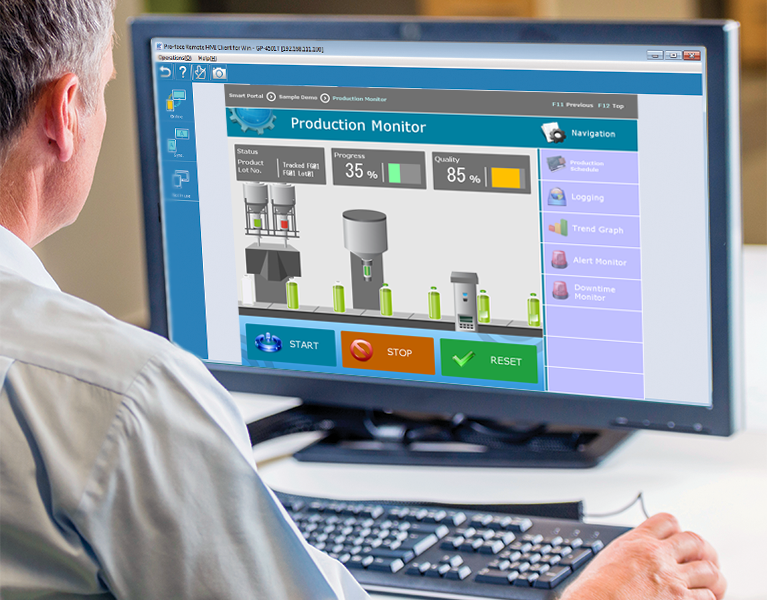
Monitor and operate compatible Pro-face HMI screens from a Windows PC. View multiple equipment screens together, monitor alarm conditions and switch between connected machines from your desktop.

Pro-faces
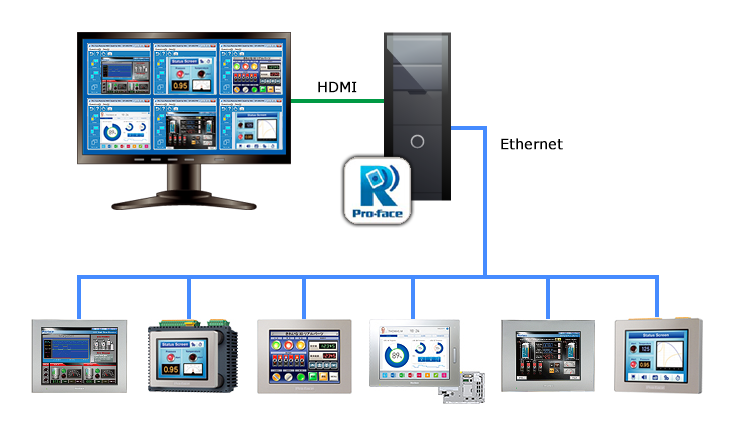
Multi-Monitor Mode Display up to 6 screens on one PC screen
Alarm Monitoring Identify equipment status and alarm conditions
Multi-client Function Monitor equipment from multiple PCs
Product Overview

Bring Multiple HMI Screens to Your Desktop

Pro-face Remote HMI Client for Win is a Windows desktop application that enables remote viewing and operation of compatible Pro-face HMI runtime screens from a PC.

Instead of checking each machine separately, users can view multiple HMI screens on one PC, check equipment status and switch to the relevant machine screen when an alarm occurs.

It is designed for applications that require centralised visibility across connected machines while retaining remote operation controls.

Discuss Your Application →
Pro-faces
Official Product Features

Powerful Desktop Monitoring Features

Discover the core functions of Pro-face Remote HMI Client for Win, following the official product feature page.

01
SCREEN DISPLAY

Multi-Monitor & Full Screen

Display and navigate multiple HMI screens directly from a Windows PC.

  • Multi-Monitor Mode: Display up to six screens within one PC screen.
  • Full Screen Mode: Resize the application window to the maximum available PC screen size.
  • Screen Shortcut: Register machine images or text for easier navigation between applications.
02
OPERATION & CONTROL

Flexible Remote Operation

Switch between supported operation modes and coordinate remote access to connected equipment.

  • Synchronous Mode: The local HMI and remote client display the same screen.
  • Asynchronous Mode: Both can display different screens and operate independently.
  • Multi-client Function: Multiple PCs can monitor equipment simultaneously.
  • Exclusive Touch Operation: Help prevent conflicting operations by controlling remote touch access.
03
ALARM & STATUS

Alarm Monitor & Remote Status

Identify equipment that requires attention and understand the status of remote operation.

  • Alarm Monitor Function: View HMI status in an overview and identify the system with a fault.
  • Alarm Sound: Supported alarms can trigger an audible alert.
  • Notification Centre: Display alarm notifications and switch to the screen associated with the alarm.
  • Remote Status Icon: Show connection and touch-control status on the HMI screen.

Available functions depend on the supported HMI model, GP-Pro EX version, Windows environment and project configuration. Verify the official compatibility information before deployment.

Applications

Where Remote HMI Client for Win Fits

Use a Windows PC as a convenient access point for supported HMI screens in production, maintenance and equipment monitoring environments.

01

Centralised Equipment Monitoring

View several connected HMI screens on one PC to help operators check equipment conditions without switching between separate physical HMI locations.

02

Faster Alarm Identification

Use the alarm overview and notification functions to identify the equipment requiring attention, then switch to the relevant HMI screen to investigate the issue.

03

Multiple Monitoring Positions

Allow multiple compatible PCs to monitor equipment from different viewpoints, subject to supported configuration and connection limits.

04

Remote Operation Support

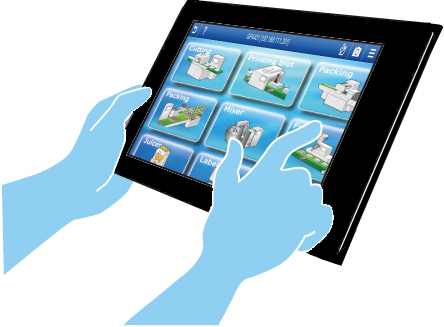
Access supported HMI screens from a Windows PC for monitoring and operation, while using touch-control settings to reduce unintended or conflicting commands.

Operation Modes

Choose the Screen Mode for Your Workflow

The official client supports synchronous and asynchronous operation modes. The available modes can be limited through GP-Pro EX settings.

Synchronous Operation

The remote client and local HMI display the same screen, making it easier to follow the operator’s current view.

Asynchronous Operation

The remote client and local HMI can display different screens and operate independently, where configured.

Exclusive Touch

Configure touch monopoly settings to help avoid conflicting operations between the local HMI and remote client.

Remote Status Icon

The HMI can indicate remote connection and touch-control status. The documented indicators include connected, HMI server monopolised and PC client monopolised states.

Compatibility & Setup

Check Your HMI and Windows Environment

Before implementing Remote HMI Client for Win, confirm the supported equipment, software versions, Windows operating environment and required licences.

  • Confirm the HMI or WinGP model and supported configuration.
  • Verify GP-Pro EX and client software version requirements.
  • Check network connectivity between the Windows PC and equipment.
  • Review connection limits, licences and operating requirements.
Check Supported Models →
Pro-faces
Frequently Asked Questions

Remote HMI Client for Win FAQs

Important information before selecting the software for your application.

What is Pro-face Remote HMI Client for Win?

It is a Windows desktop application for remotely viewing and operating compatible Pro-face HMI runtime screens from a PC.

How many screens can be displayed at once?

The official Multi-Monitor Mode feature specifies up to six screens displayed within one PC screen. Confirm the supported configuration and performance requirements for your application.

Can multiple PCs monitor the same equipment?

The Multi-client Function allows multiple PCs to operate simultaneously for monitoring equipment from different viewpoints. Check the supported models and connection limits for your system.

Does the client support alarm notifications?

Yes. The published features include an alarm overview, alarm sound and the ability to display an alarm message in the Windows Notification Centre.

What operating systems are supported?

Refer to the official operating environment page for supported Windows versions, required components and hardware requirements. These requirements may vary by software version.

Which Pro-face models are supported?

The official supported-model list includes specified Pro-face HMI families and WinGP configurations. Compatibility depends on the model, software version and system setup.

Sciengate Automation (M) Sdn Bhd

Need Better Visibility Across Your HMI Screens?

Contact Sciengate Automation to review your existing Pro-face HMI, Windows PC environment and Remote HMI Client requirements.

Enquire About Remote HMI Client →

Industrial Automation · HMI · Remote Monitoring